

Home
How to use (Electron edition)
This section covers the standalone Electron edition of Auto Mute Music.
Using the Overwolf edition instead? It's here →
OverwolfBefore you start
- The Electron edition is a standalone desktop app — no Overwolf platform required. It sits in the Windows system tray and can launch automatically when Windows starts.
- No setup is needed. Launch a supported game and AMM detects it automatically; music pausing and volume changes start working right away.
- Press Alt+F (the default hotkey, changeable in Settings) to bring up the same window as an in-game overlay, so you can change settings without alt-tabbing out.
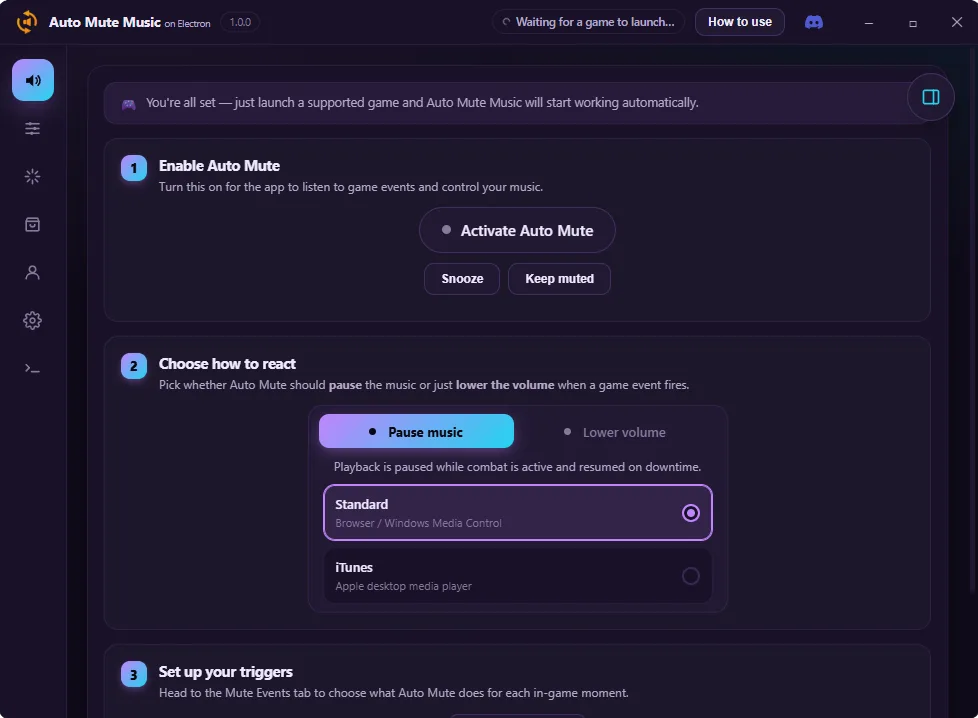
1.General
The default screen when the app opens. A 3-step wizard walks you through the basics.
- Step 1 — Turn Auto Mute on or off (or snooze it for a while).
- Step 2 — Choose how it reacts: pause playback, or just lower the volume.
- Step 3 — Set up your triggers on the Mute Events screen.
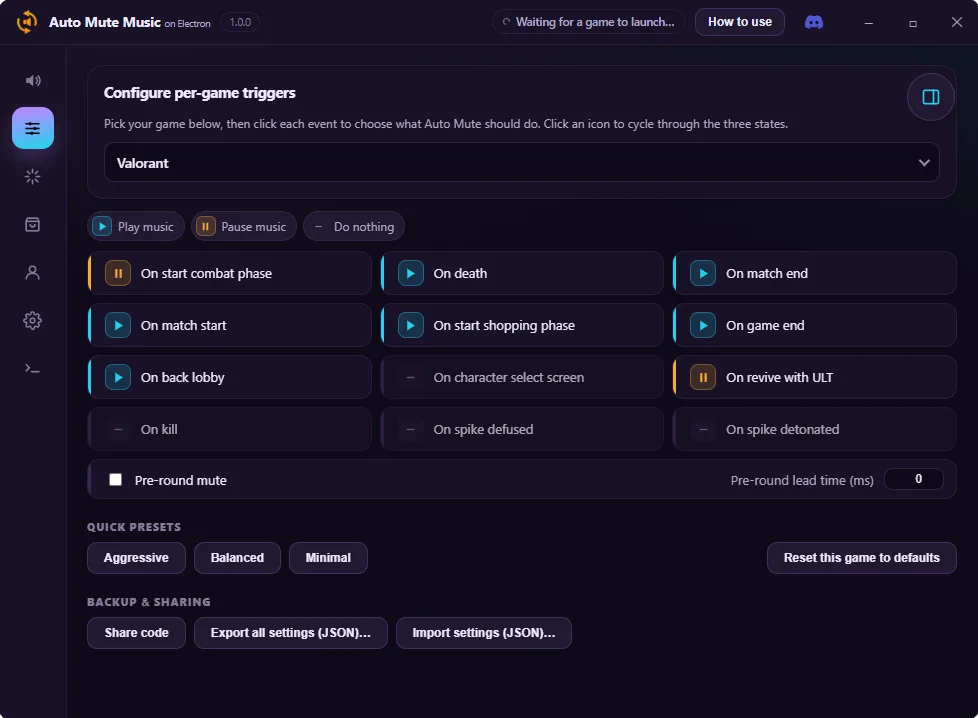
2.Mute Events
Configure, per game, which in-game events do what (play, pause, or do nothing).
- Click an event to cycle through its states. Aggressive / Balanced / Minimal presets are available too.
- Back up or share your setup with a code or a JSON export.
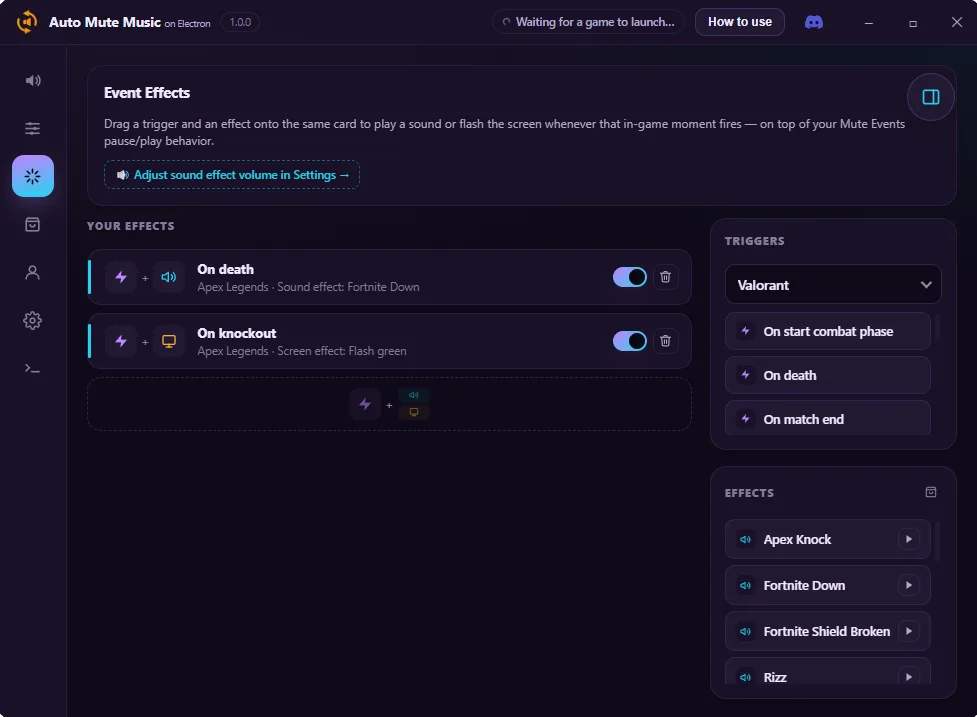
3.Event Effects
A drag-and-drop workspace for pairing game events with sound or screen effects, layered on top of the mute behavior.
- Drag a trigger and an effect onto the same card to pair them. Effect volume is adjusted separately in Settings.
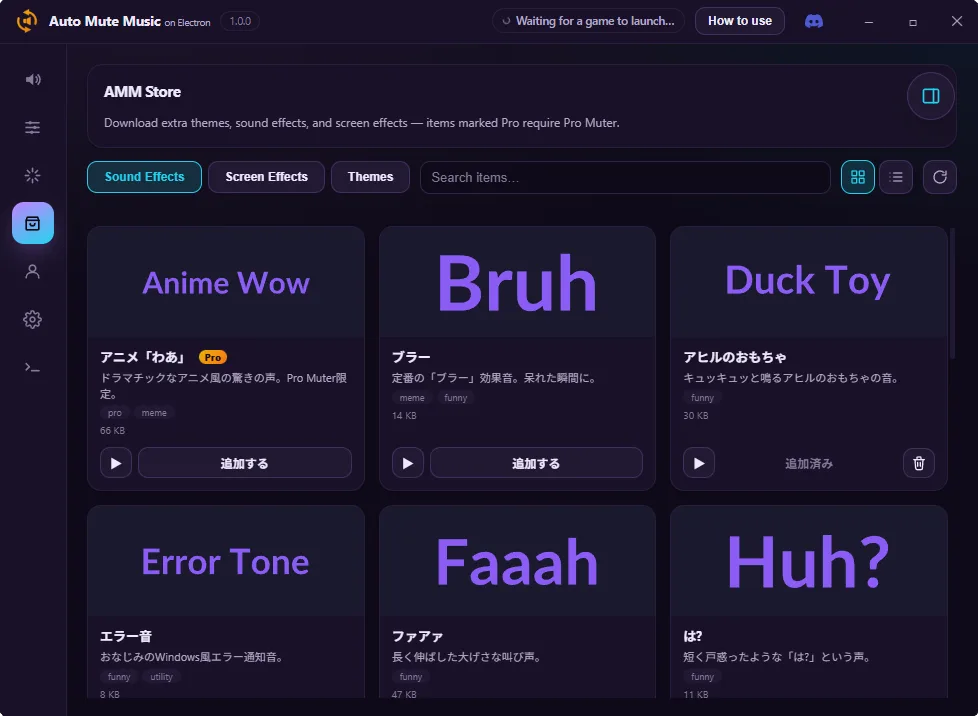
4.AMM Store
Download additional themes, sound effects, and screen effects.
- Items marked “Pro” are exclusive to Pro Muter members, and downloading requires sign-in.
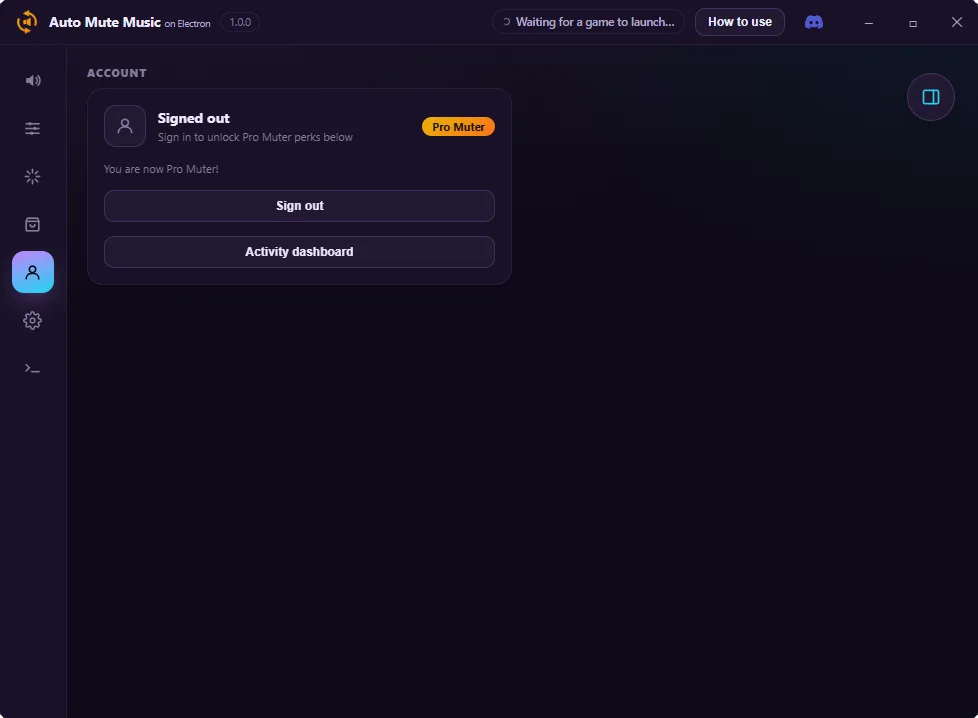
5.Account
Manage sign-in and your Pro Muter status.
- The Activity dashboard shows usage stats like pause/play counts and total muted time.
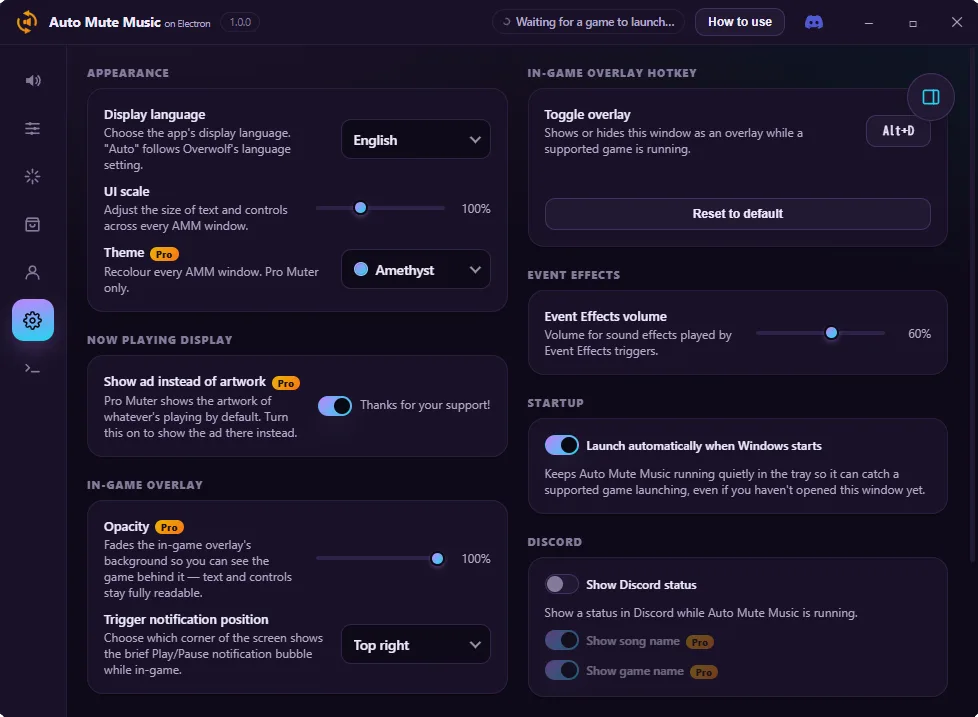
6.Settings
Fine-tune the app's appearance, overlay, and startup behavior.
- Appearance: display language, UI scale, and theme (Pro only).
- In-Game Overlay: hotkey, notification position, and transparency (Pro only).
- Also here: auto-launch on Windows startup, Discord status, and links to the legal pages.
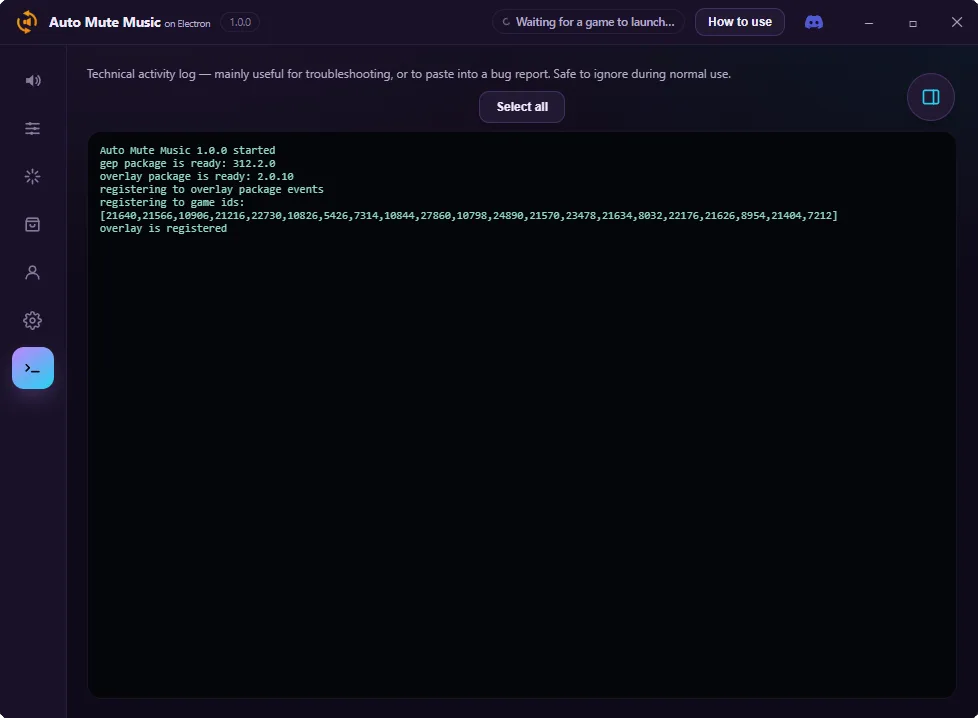
7.Log
A read-only technical log for troubleshooting. Safe to ignore during normal use.
See How to start (Overwolf edition) for install instructions.